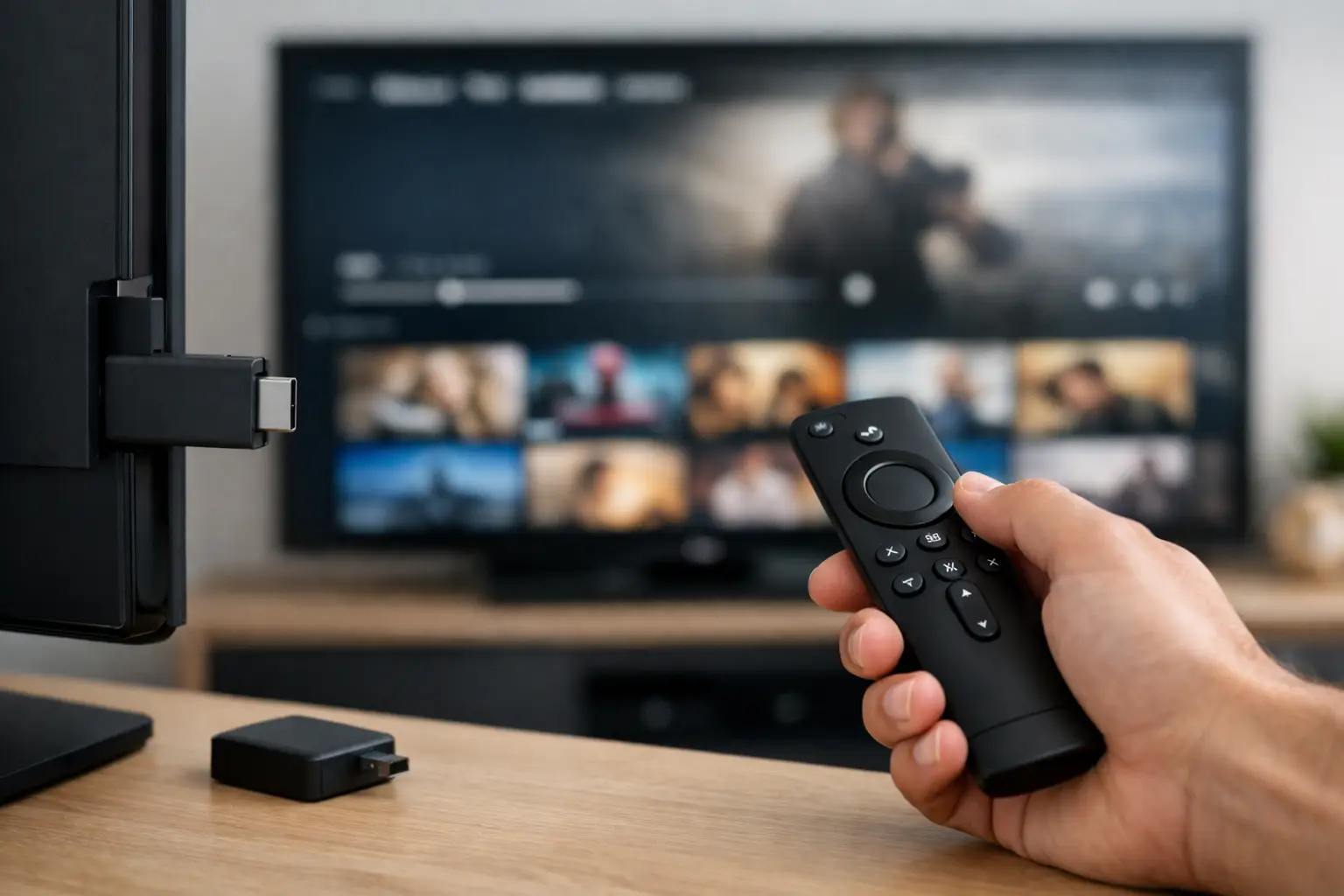
A Fire TV Stick can turn a basic TV into a serious entertainment setup, but hardware alone does not guarantee great playback. Knowing how to stream on Firestick means choosing the right services, configuring your connection correctly, and avoiding the small setup mistakes that cause buffering, weak picture quality, or app crashes during the game.
For cord-cutters, movie fans, international households, and anyone tired of switching between subscriptions, Firestick remains one of the most flexible streaming devices available. It supports major streaming apps, live TV platforms, media servers, and compatible IPTV players in a compact device built for the living room.
What You Need Before You Start Streaming
Start with a Fire TV Stick that matches your screen and expectations. A standard Fire TV Stick is enough for casual HD viewing, while a Fire TV Stick 4K or 4K Max is the stronger choice for households watching 4K movies, high-bitrate content, sports, or multiple services throughout the day. The 4K Max offers more processing headroom and better wireless capability, which can matter when apps have large guide data or media files are demanding.
You also need a stable internet connection, an Amazon account, and active credentials for the streaming services you plan to use. For regular HD playback, a dependable connection around 10 Mbps can work. For 4K streaming, aim for at least 25 Mbps available to the device. More matters when other people are gaming, video calling, downloading, or streaming at the same time.
Your TV should be set to the correct HDMI input, and the Firestick should use its included wall power adapter instead of relying on a TV USB port. A TV USB port may provide insufficient power, leading to random restarts, slow performance, or apps that close unexpectedly.
How to Stream on Firestick Step by Step
Connect the Firestick to an HDMI port, connect its power cable to a wall outlet, and turn on the TV. Follow the on-screen prompts to pair the remote, connect to Wi-Fi, sign in to Amazon, and install any available Fire OS updates.
Once the home screen loads, use the Find menu to search for the streaming app you want. Install services from the Amazon Appstore whenever they are available. Sign in using your subscription details, then test a live channel or on-demand title before building out the rest of your app library.
For a premium setup, keep your main apps on the first row of the home screen. Press the menu button on the remote while highlighting an app, then move it into position. Put your live TV player, movie service, media library, and speed test tool where they are easy to reach. This sounds minor, but it makes the Firestick feel like a dedicated entertainment hub instead of a cluttered app drawer.
If your provider uses a compatible player app, enter its server address, username, password, playlist, or authorized login method exactly as supplied. A single misplaced character can prevent channels or libraries from loading. Use only services and apps you are authorized to access, and avoid downloading unknown files from unverified sources.
Choose the Right Streaming Setup for Your Viewing Habits
The best Firestick configuration depends on what you watch most. A household focused on movies and series may prioritize on-demand apps and a private media server. Sports viewers usually care more about channel availability, guide speed, low delay, and connection consistency. International viewers may want country-specific channels, foreign-language films, and regional news in one place.
This is where a bundled setup can reduce subscription fatigue. Rather than jumping between separate services for live TV, movies, series, and personal-library-style browsing, a provider such as PrimeHub.Live can combine Premium IPTV access with a private Jellyfin media server membership. That approach is built for high-volume viewing, with access positioned around 40,000+ live channels, 100,000+ video-on-demand titles, and a hosted library that spans movies, TV series, anime, documentaries, Bollywood, foreign content, and high-bitrate 4K remux files.
The trade-off is simple: bigger libraries and live channel lineups need a capable device and a well-tuned network. If you are using an older Firestick on crowded Wi-Fi, even a strong service can feel slower than it should. Match the subscription, player, device, and connection to the kind of viewing you actually do.
Improve Firestick Speed and Reduce Buffering
Buffering is not always a provider problem. It can come from weak Wi-Fi signal, congested home networks, outdated Firestick software, low available storage, or a device that cannot keep up with high-bitrate 4K files.
Start by checking signal strength. Open Settings, then Network, and select your Wi-Fi connection. If the Firestick is far from the router or separated by walls, move the router closer if possible or use an HDMI extender to reposition the stick away from the back of the TV. The included extender can improve wireless reception because TVs and HDMI ports can create interference.
Use 5 GHz Wi-Fi when the Firestick is near the router. It usually delivers faster speeds and less congestion than 2.4 GHz. Use 2.4 GHz if the device is farther away and needs better range. An Ethernet adapter is the strongest choice for homes where Wi-Fi is crowded or where 4K playback needs maximum stability.
Keep at least 1 GB of free storage on the Firestick. Remove apps you no longer use, clear an app cache when it becomes bloated, and restart the device regularly. Go to Settings, My Fire TV, and Restart for a clean reset without erasing your apps or account.
Also check your video settings. In Settings, open Display & Sounds and make sure your resolution is appropriate for the TV. A 4K TV should generally use automatic resolution detection or a supported 4K setting. If a stream keeps stuttering, test it at a lower resolution first. The issue may be available bandwidth rather than the content itself.
Get Better Picture and Audio Quality
A Firestick can deliver excellent results, but your display settings matter. Enable HDR formats only when your TV handles them well. Some older TVs look better with standard dynamic range for everyday viewing, while a newer 4K set can benefit from HDR10, HDR10+, or Dolby Vision where supported by both the TV and content.
For audio, connect through a soundbar or AV receiver if you want fuller dialogue and stronger surround effects. In the Firestick audio settings, choose the format that matches your equipment. Auto is usually the safest option. Selecting advanced surround formats on unsupported hardware can create audio delay or silence.
High-bitrate 4K remux files are a different class of stream from standard compressed video. They can look exceptional on a large TV, but they demand more from your network and device. Wired Ethernet, a modern 4K Firestick, and a strong home router make the biggest difference here.
Fix Common Firestick Streaming Problems
If an app will not open, force stop it from Settings, Applications, Manage Installed Applications. Then clear the cache and relaunch it. Clearing data is more aggressive and may require you to sign in again, so use it only if a cache clear does not help.
If live channels load slowly, test another channel and then test a different app. If everything is slow, the issue is likely your local connection or Firestick performance. If only one service is affected, check that your account is active and that the player settings are correct.
If the remote becomes unresponsive, replace the batteries first. You can also restart the Firestick by holding Select and Play/Pause together for about five seconds. For persistent issues, check for system updates before considering a factory reset.
A factory reset should be the last step. It removes your installed apps, account details, and settings. Most playback problems are resolved faster by restarting, freeing storage, improving Wi-Fi, or reinstalling one problematic app.
Build a Firestick Setup That Stays Fast
The strongest Firestick setups are not the ones with the most random apps installed. They are organized around a few reliable services, a current Fire OS version, enough free storage, and a connection capable of supporting your preferred quality level.
Set aside five minutes each month to remove unused apps, restart the device, and check for updates. That small routine keeps your streaming setup ready when you want live sports, a 4K movie night, or a deep catalog of international entertainment without turning the TV on into a troubleshooting session.
Leave a Reply